Export All Your Fathom Transcripts in Bulk
Key takeaways
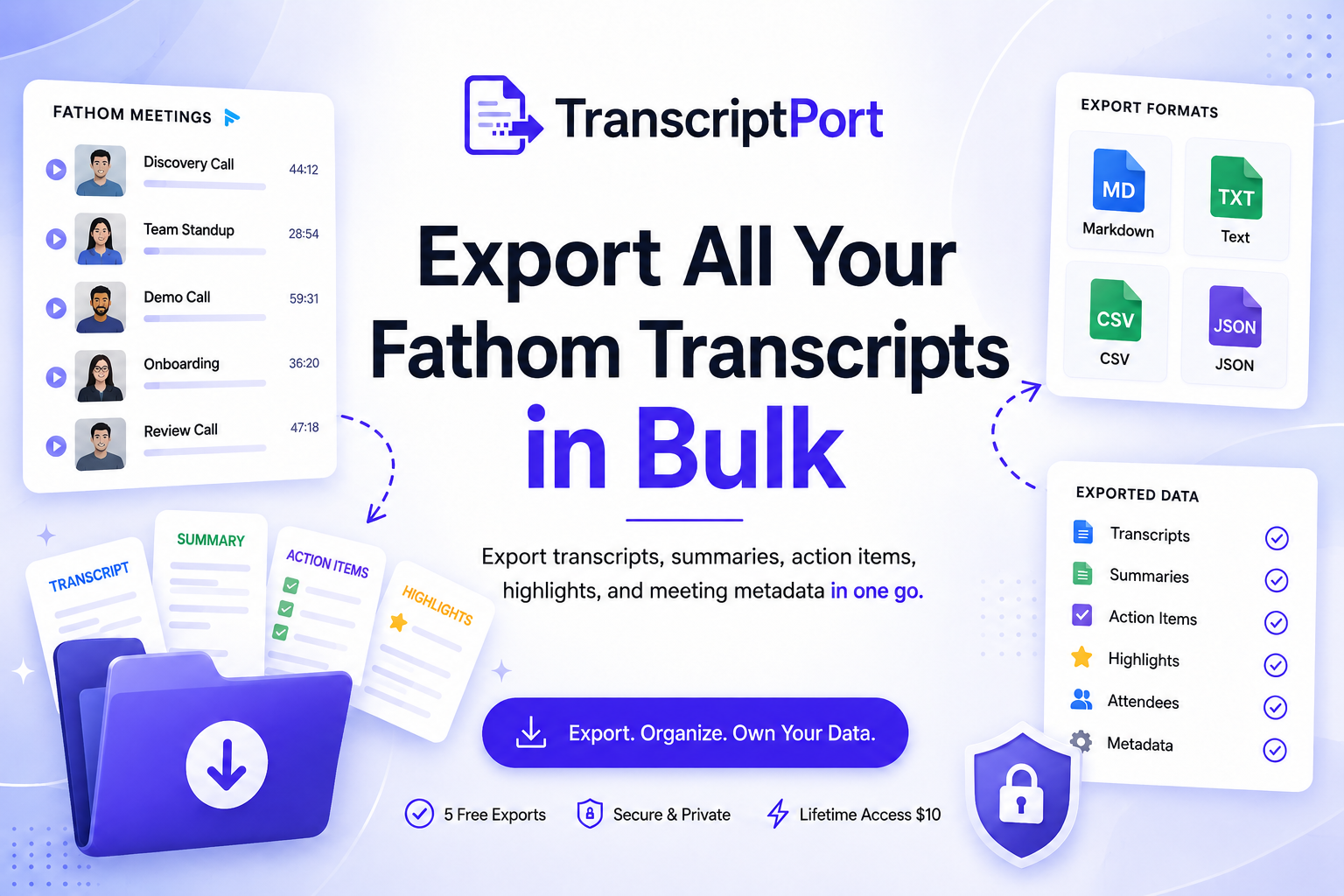
- Fathom has no native bulk export — only one-at-a-time Copy Transcript.
- TranscriptPort exports your entire Fathom library as Markdown, TXT, CSV, or JSON.
- Export transcripts, AI summaries, action items, highlights, and meeting metadata.
- Connect via Fathom's official API — no credentials stored, works on any Fathom plan.
- 5 free meeting exports, no credit card required.
Fathom records your meetings and generates transcripts automatically. Accessing one transcript is straightforward. Accessing all of them is not.
Fathom's native export copies a single transcript at a time. Open a meeting, click Copy Transcript, paste it somewhere. Repeat for every call in your library. That process does not scale.
TranscriptPort connects to your Fathom account and exports your full meeting library in bulk — transcripts, summaries, action items, and highlights — organised into files you can actually use. Connect Fathom and export 5 meetings free.
# What you can export from Fathom
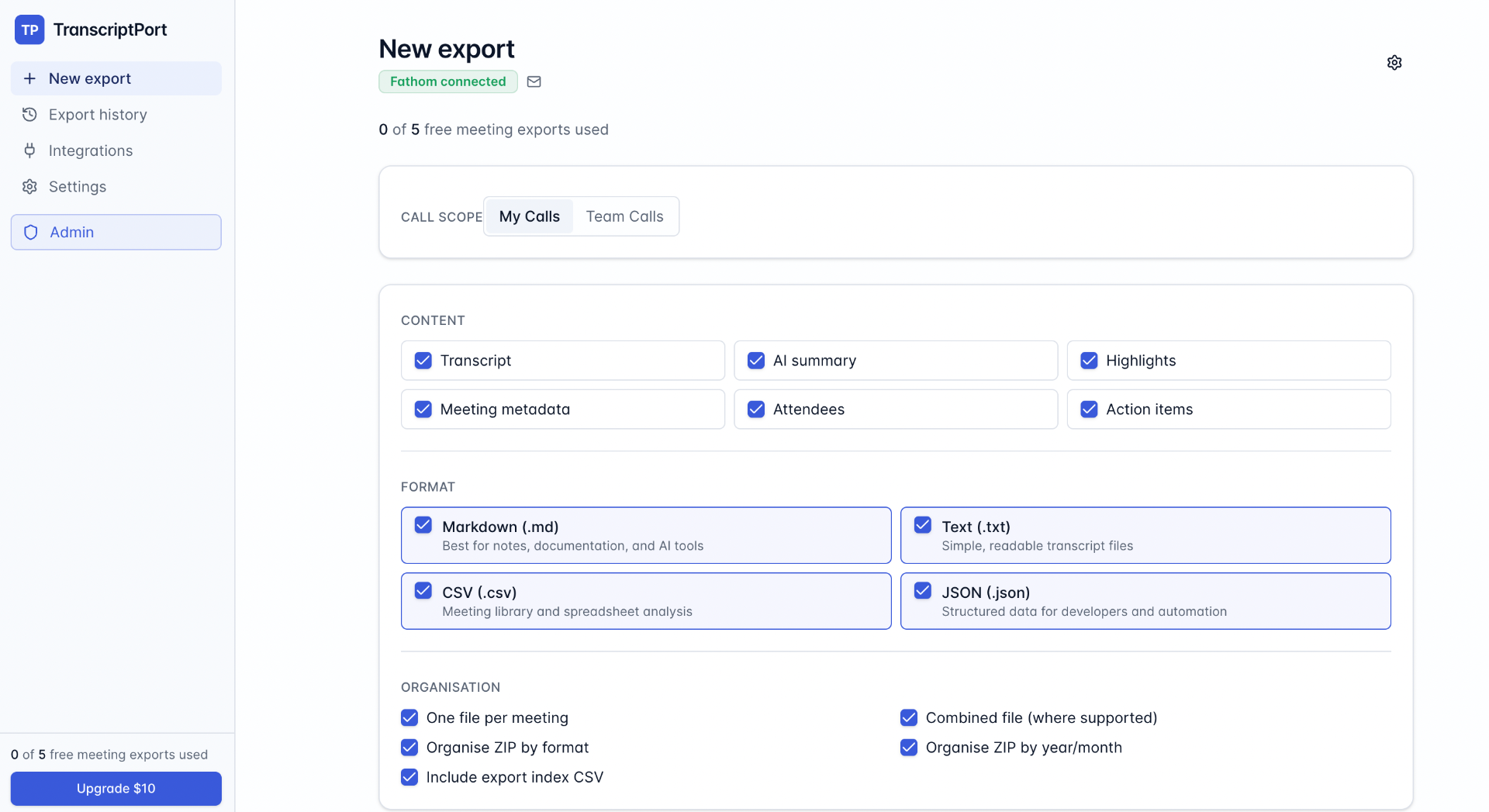
TranscriptPort pulls the following data from your Fathom meetings:
- Transcripts — full speaker-labelled conversation text
- AI summaries — Fathom's generated meeting summary
- Action items — extracted tasks and follow-ups
- Highlights — bookmarked moments from the call
- Meeting metadata — title, date, duration, participants
Output formats: Markdown, TXT, CSV, JSON. Choose one format for the entire export or mix per use case.
# How to bulk export Fathom transcripts with TranscriptPort
# Step 1 — Connect your Fathom account
Log in to TranscriptPort and authorise your Fathom account. The connection uses Fathom's official API. Your credentials are never stored.
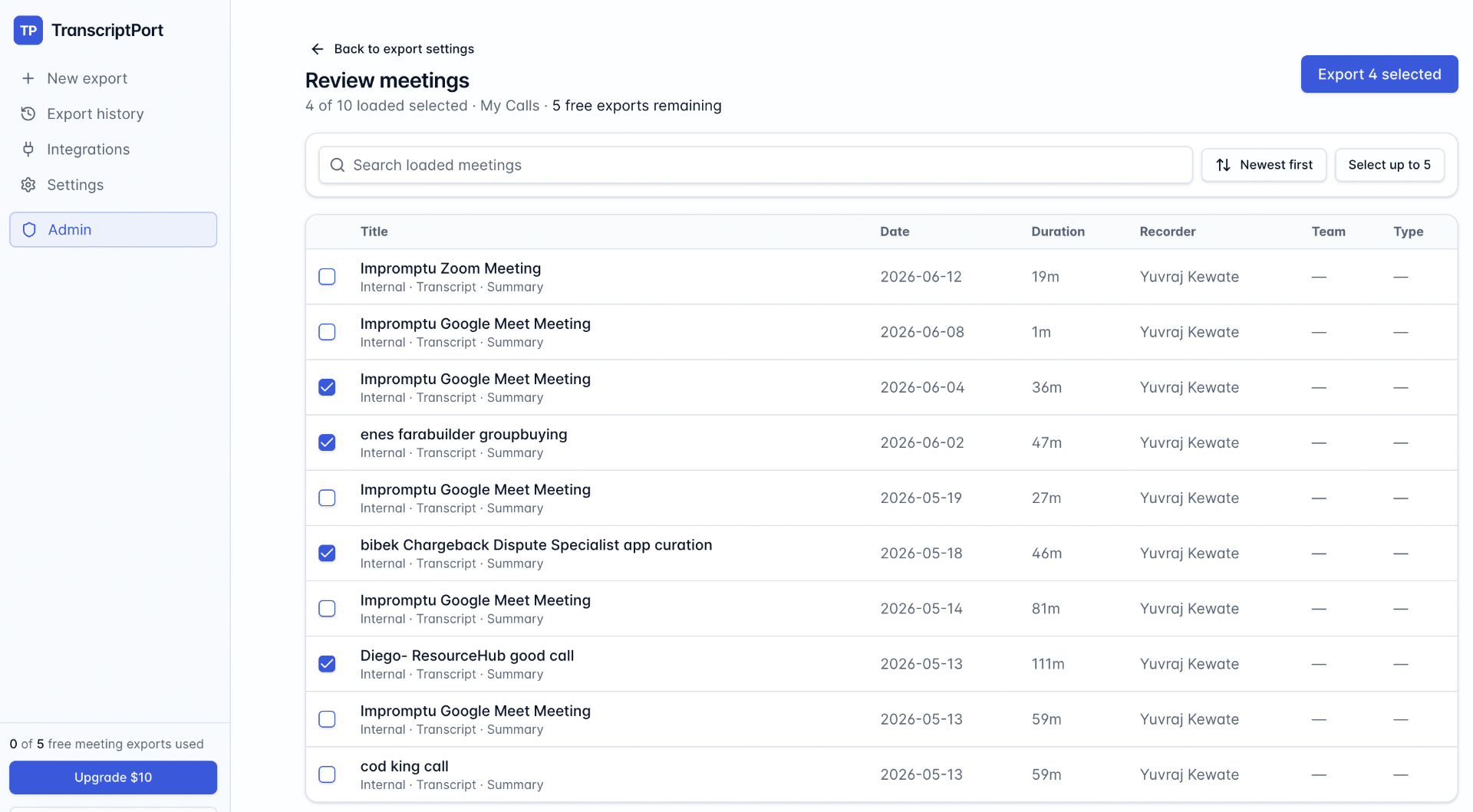
# Step 2 — Select the meetings to export
Your full Fathom meeting library loads automatically. Select all meetings or filter by date range, participant, or keyword. Confirm exactly which meetings will be exported before proceeding.
# Step 3 — Choose your export format
Pick Markdown, TXT, CSV, or JSON. Each meeting exports as a separate file, named and dated automatically.
# Step 4 — Download your files
TranscriptPort packages everything into a single ZIP file. One download. No manual work.
Connect Fathom and export 5 meetings free →
# How to export a single Fathom transcript manually
Fathom includes a native copy option for individual calls. Open any recorded call, locate the Copy Transcript button above the transcript panel, and click it. The transcript copies to your clipboard.
This works for one-off needs. It does not work for exporting dozens or hundreds of meetings. There is no native bulk export in Fathom.
For anything beyond a single transcript, TranscriptPort handles the volume.
# Export formats explained
Choose the format that fits your workflow.
| Format | Best for | Output |
|---|---|---|
| Markdown | Notion, Obsidian, note-taking tools | Formatted .md files with headers |
| TXT | Plain text archiving, simple search | Unformatted .txt files |
| CSV | Spreadsheets, data analysis | Rows per speaker turn or per meeting |
| JSON | Developers, CRMs, API integrations | Structured data, machine-readable |
# Why teams export their Fathom meeting history
- Customer research analysis. Pull 50 customer interviews into a folder and run them through an AI tool or qualitative analysis software.
- Sales call libraries. Build a searchable archive of prospect conversations for coaching, onboarding new reps, or reviewing objection patterns.
- Onboarding documentation. Convert recorded onboarding sessions into reference material without manual transcription or copy-pasting.
- Compliance and record-keeping. Maintain a structured archive of client or internal meetings in a format your legal or compliance team can actually use.
- LLM and AI workflows. Feed meeting transcripts directly into GPT, Claude, or internal AI tools for summarisation, tagging, or analysis at scale.
# Frequently asked questions
# Does Fathom have a built-in bulk export?
No. Fathom lets you copy a single transcript from any recorded call view. There is no native option to export multiple meetings at once. TranscriptPort fills that gap.
# What formats does TranscriptPort export to?
Markdown, TXT, CSV, and JSON. You choose the format before downloading. All files are delivered in a single ZIP.
# How many meetings can I export?
Markdown, TXT, CSV, and JSON. You choose the format before downloading. All files are delivered in a single ZIP.
# Is TranscriptPort free?
You can export 5 meetings free with no credit card required. Paid plans cover unlimited exports.
# Does TranscriptPort store my Fathom data?
No. TranscriptPort retrieves your data from Fathom's API at export time and delivers it directly to you. Your meeting content is not stored on TranscriptPort's servers.
# Can I export Fathom summaries and action items, not just transcripts?
Yes. TranscriptPort exports transcripts, AI summaries, action items, highlights, and meeting metadata — not just the raw transcript text.
# How long does a bulk export take?
Most exports complete in under a few minutes. Larger libraries (500+ meetings) may take longer depending on file size and format.
# Does this work with Fathom's free plan?
Yes. TranscriptPort connects via Fathom's API, which is available regardless of your Fathom plan tier.
FAQ
- Does Fathom have a built-in bulk export?
- No. Fathom lets you copy a single transcript from any recorded call view. There is no native option to export multiple meetings at once. TranscriptPort fills that gap.
- What formats does TranscriptPort export to?
- Markdown, TXT, CSV, and JSON. You choose the format before downloading. All files are delivered in a single ZIP.
- How many meetings can I export?
- There is no hard cap. TranscriptPort is built for large libraries — teams have used it to export 1,000+ meetings in a single session.
- Is TranscriptPort free?
- You can export 5 meetings free with no credit card required. Paid plans cover unlimited exports.
- Does TranscriptPort store my Fathom data?
- No. TranscriptPort retrieves your data from Fathom's API at export time and delivers it directly to you. Your meeting content is not stored on TranscriptPort's servers.
- Can I export Fathom summaries and action items, not just transcripts?
- Yes. TranscriptPort exports transcripts, AI summaries, action items, highlights, and meeting metadata — not just the raw transcript text.
- How long does a bulk export take?
- Most exports complete in under a few minutes. Larger libraries (500+ meetings) may take longer depending on file size and format.
- Does this work with Fathom's free plan?
- Yes. TranscriptPort connects via Fathom's API, which is available regardless of your Fathom plan tier.