How to Export Fathom Transcripts in Bulk: Step-by-Step Guide
Key takeaways
- Fathom transcripts can be copied individually from recorded calls.
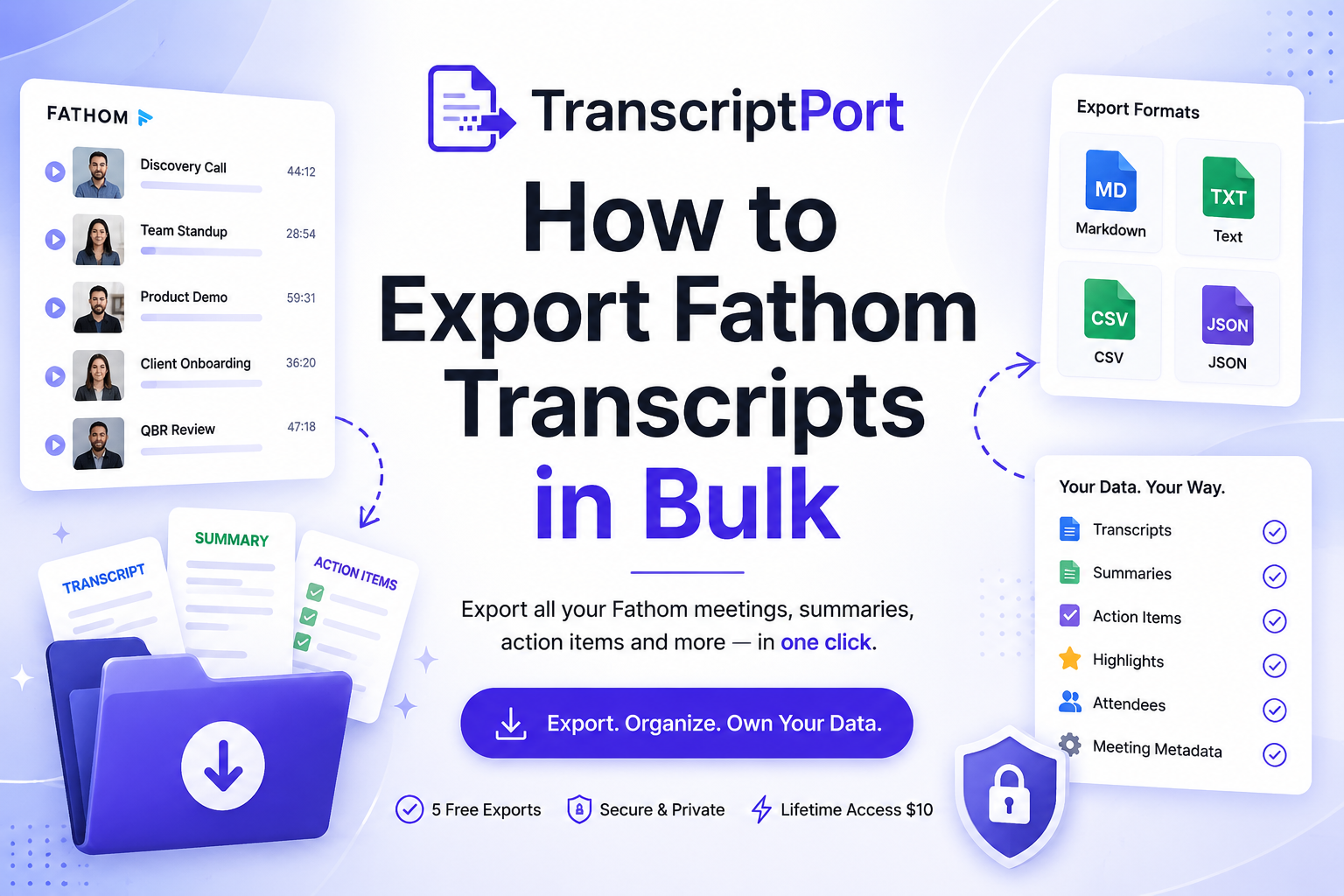
- TranscriptPort supports bulk exports from My Calls and eligible Team Calls.
- Users can filter meetings by date, title, attendee, company domain, meeting type, team, and recorder.
- Available export formats include Markdown, TXT, CSV, and JSON.
- New users can export five real meetings free without a credit card.
- The early-user Founding Lifetime plan costs $10 as a one-time payment.
- TranscriptPort does not retain a permanent transcript archive after processing the requested export.
Fathom is useful for recording meetings, creating transcripts, and generating AI summaries. But once your meeting library starts growing, moving that information into another tool can become tedious.
Fathom lets you copy the transcript from an individual recorded call. That works when you need one transcript. It becomes inefficient when you need to export dozens or hundreds of customer interviews, sales calls, research sessions, team meetings, or onboarding conversations.
TranscriptPort gives you a faster way to export Fathom transcripts in bulk. You can connect your Fathom account, filter the meetings you need, review the results, and download organised files in Markdown, TXT, CSV, or JSON.
You can connect Fathom and export 5 meetings free. No credit card is required.
Quick answer: How do you export Fathom transcripts?
There are two main ways to export a Fathom transcript:
Open an individual recording in Fathom and copy the transcript manually.
Use TranscriptPort to select and export multiple Fathom meetings in one workflow.
The manual method works for one or two calls. TranscriptPort is better suited to bulk exports, complete backups, team-call exports, structured data, and moving meeting content into other systems.
Can you download transcripts directly from Fathom?
Fathom currently provides a Copy Transcript option inside individual recorded calls. You can open a meeting, copy its transcript to your clipboard, and paste it into a document or another application.
However, Fathom does not provide a direct transcript-file download from the individual call interface. That means creating a local archive manually requires opening calls one at a time, copying the content, pasting it into files, naming those files, and organising them yourself.
For a small number of meetings, this may be enough. For a large meeting history, a bulk-export workflow saves considerable manual effort.
Method 1: Copy one Fathom transcript manually
Use this method when you need only one transcript.
Step 1: Open your recorded call
Sign in to Fathom and open the meeting whose transcript you want to copy.
Step 2: Find the transcript
Open the transcript section inside the recorded call.
Step 3: Select Copy Transcript
Click the Copy Transcript option above the transcript.
Step 4: Paste it into another application
Open a text editor, document, knowledge base, CRM, or AI tool and paste the copied transcript.
Step 5: Save and organise the file
Give the file a clear name that includes the meeting title and date.
For example:
2026-06-10-customer-onboarding.txt
This process is straightforward, but it must be repeated for every call.
Method 2: Export Fathom transcripts in bulk with TranscriptPort
TranscriptPort is designed for users who need to move more than one Fathom meeting at a time.
It can export:
Speaker-labelled transcripts
AI summaries
Action items
Highlights
Attendee information
Meeting metadata
The available output formats are:
Markdown
TXT
CSV
JSON
Here is the complete process.
Step 1: Create your TranscriptPort account
Go to TranscriptPort and sign in.
New users can export five real meetings from their own Fathom account at no cost. You do not need to enter a credit card to test the workflow.
Step 2: Connect your Fathom account
Open the Integrations section and select Connect Fathom.
You will be sent to Fathom to approve read-only access to the meeting data available to your account. After approval, you will return to TranscriptPort.
You can disconnect Fathom later from the Integrations page.
Step 3: Choose My Calls or Team Calls
Choose the source of the meetings you want to export.
My Calls
Use this option to work with meetings recorded through your own account.
Team Calls
Use this option when your Fathom workspace gives you access to team recordings.
Team exports may also allow you to narrow results by team or recorder, depending on the meetings and permissions available to your account.
Step 4: Choose what to include
Select the content you want TranscriptPort to prepare.
Available options can include:
Transcript
AI summary
Action items
Highlights
Attendees
Meeting metadata
You do not need to export every content type.
For example, a researcher may need transcripts and attendees, while a sales manager may prefer transcripts, summaries, and action items.
Step 5: Filter the Fathom meetings
Filters help you avoid downloading an entire meeting history when you only need a particular group of calls.
TranscriptPort supports filters such as:
Date range
Meeting-title keywords
Attendee email addresses
Attendee company domains
Internal or external meetings
Meeting type
Team
Recorder
Here are a few practical examples.
Export calls with one customer
Enter the customer’s company domain, such as:
acme.com
Export calls from a particular month
Choose a start and end date.
Export customer interviews
Enter a title keyword such as:
customer interview
Export calls recorded by one team member
Open Team Calls and select the recorder.
Step 6: Review the matching meetings
TranscriptPort shows the meetings matching your filters.
You can review the loaded meetings before starting the export. This is useful when you want to remove internal conversations, duplicate meetings, test calls, or unrelated sessions.
Free users can select up to the number of meeting exports remaining on their account. Lifetime users can manually export as many eligible meetings as needed, subject to fair-use and provider limits.
Step 7: Choose your file formats
You can select one or more formats for the same export.
Markdown
Markdown is a strong choice for:
Notion
Documentation
Knowledge bases
ChatGPT or Claude projects
Git-based repositories
AI workflows
Markdown keeps the content readable while preserving headings and structure.
TXT
TXT works well when you need:
Simple transcript files
Broad compatibility
Clean text for uploads
Minimal formatting
CSV
CSV is useful when you want:
A meeting-library index
Spreadsheet analysis
Attendee and meeting comparisons
Data that can be imported into another system
JSON
JSON is best suited to:
Developers
Data pipelines
Internal automations
Structured transcript processing
Custom applications
If you are unsure, Markdown is a good default for individual meeting files, while CSV works well as an overview of the entire export.
Step 8: Start the export
Start the export after reviewing your content, formats, and filters.
TranscriptPort processes the selected meetings and shows progress as it works through the export.
For larger exports, the product can:
Track completed meetings
Preserve progress
Isolate failed items
Retry failed meetings
Resume interrupted work
Prepare partial results when possible
Failed meetings do not consume the free export allowance.
Step 9: Download the organised export
Your export is organised into clear folders and filenames.
A typical export may look like this:
transcriptport-export/
├── markdown/
│ ├── 2026-06-10-customer-onboarding-fathom.md
│ ├── 2026-06-11-product-demo-fathom.md
│ └── 2026-06-12-quarterly-review-fathom.md
├── csv/
│ └── meetings.csv
└── export-index.csv
Consistent filenames make the archive easier to search, sort, upload, and reuse.
Which Fathom export format should you choose?
Use this table as a quick reference.
Format Best for Main advantage
Markdown AI tools, notes, documentation Readable and structured
TXT Simple transcript archives Works almost everywhere
CSV Meeting indexes and spreadsheets Easy to filter and analyse
JSON Developers and automations Preserves structured data
You can select multiple formats when you need both readable documents and structured data.
For example:
Markdown for reading and AI analysis
CSV for your meeting index
JSON for a custom internal workflow
Why export your Fathom meeting history?
Meeting transcripts often contain information that is difficult to reconstruct later.
A bulk export can help you:
Create a meeting backup
Keep a portable copy of important conversations rather than relying on one application as the only place where the information exists.
Analyse customer interviews
Combine research calls and identify repeated objections, requests, language, or themes.
Review sales conversations
Export discovery calls, demos, and follow-ups for coaching, qualification review, and objection analysis.
Build internal knowledge
Move important meeting outcomes into documentation, onboarding material, or team knowledge bases.
Work with AI tools
Upload selected transcripts into an AI workspace to summarise conversations, compare calls, extract patterns, or prepare follow-up material.
Always review the privacy requirements, customer agreements, and internal policies that apply before uploading meeting content into another service.
Prepare for a notetaker migration
A structured archive makes it easier to retain useful meeting data when changing tools or reorganising systems.
Best practices for organising exported transcripts
A bulk export is more useful when the files remain easy to navigate.
Include the meeting date in filenames
Dates make chronological sorting simple.
Recommended pattern:
YYYY-MM-DD-meeting-title-provider
Keep one file per meeting
Individual files work well for reading, sharing, and uploading selected calls.
Include an index
A CSV index can contain:
Meeting title
Date
Recorder
Attendees
Meeting type
Source link
Available content
Separate formats into folders
Do not mix Markdown, TXT, CSV, and JSON files in one large directory.
Export smaller filtered groups when possible
Instead of exporting an entire history every time, use date, attendee, team, or meeting-type filters to create focused archives.
Examples:
Customer interviews from Q2
Sales calls recorded by one representative
Meetings with one customer domain
Quarterly business reviews
Internal onboarding calls
What happens to your Fathom data?
TranscriptPort requests access to the meeting data available to the connected Fathom user.
Meeting content is processed to prepare the export requested by the user. TranscriptPort does not retain a permanent transcript archive.
OAuth credentials are encrypted at rest, and the Fathom connection can be removed from the Integrations page.
Before exporting or sharing meeting content, make sure you have the appropriate permission to process the recording and transcript.
Troubleshooting Fathom transcript exports
No meetings appear
Check whether:
The correct Fathom account is connected
You selected My Calls or Team Calls correctly
Your filters are too narrow
Your date range includes the meetings
You have access to the team recordings
The meetings have finished processing in Fathom
Try clearing the filters and loading the meetings again.
A team or recorder filter is empty
Team-related filters depend on the teams and members available to the connected Fathom account.
A personal account may not have team data.
Some meetings fail during export
Temporary provider limits or network problems can affect individual requests.
Retry the failed meetings rather than restarting the complete export.
Transcript or summary content is unavailable
A recording may still be processing, may have limited sharing access, or may not contain the selected content type.
Review the meeting in Fathom and confirm that you can access the transcript or summary there.
The export is taking longer than expected
Larger exports require more provider requests, particularly when multiple content types are selected.
Keep the export page open, let the current job complete, and avoid starting multiple exports for the same account at the same time.
Is TranscriptPort free?
TranscriptPort lets you export five meetings from your real Fathom account for free.
The Founding Lifetime plan is currently available for $10 as a one-time payment, compared with the regular listed price of $29.
Lifetime includes:
Unlimited manual exports
Unlimited personal devices
Fathom integration
Future standard integrations
All supported formats
Advanced filters
Meeting review
Resume and retry
Future Chrome extension access
Product updates
You can review the current pricing before upgrading.
Export your first Fathom transcripts
You do not need to copy every transcript into a document manually.
Connect your Fathom account, choose the meetings you need, and export organised files that are easier to back up, analyse, and reuse.
Connect Fathom and export 5 meetings free.
For unlimited manual exports, get Founding Lifetime access for $10.
Frequently asked questions
Can I export multiple Fathom transcripts at once?
Yes. TranscriptPort lets you filter, review, and select multiple Fathom meetings before starting a bulk export.
What formats can I export Fathom transcripts to?
TranscriptPort supports Markdown, TXT, CSV, and JSON. You may select more than one format for the same export.
Can I export Fathom summaries and action items?
Yes. You can choose supported content such as transcripts, AI summaries, action items, highlights, attendees, and meeting metadata.
Can I export team meetings from Fathom?
Yes, when the connected Fathom account has access to Team Calls. Available filters may include team and recorder.
Does TranscriptPort store my transcripts?
TranscriptPort processes meeting content to prepare the files requested by the user but does not retain a permanent transcript archive.
How many Fathom meetings can I export for free?
New users can export five meetings from their real Fathom account without entering a credit card.
How much does unlimited Fathom transcript export cost?
The early-user Founding Lifetime price is currently $10 as a one-time payment. The listed regular price is $29.
Can I use the exported transcripts with ChatGPT or Claude?
Yes. Markdown and TXT files work well for selected transcript uploads, while CSV and JSON are useful for structured analysis. Review the applicable privacy and data-handling requirements before uploading meeting content to another service.
How to: step-by-step
- Step 1 — Step 1: Sign in to TranscriptPort
Create or access your TranscriptPort account.
- Step 2 — Step 2: Connect Fathom
Open Integrations, select Connect Fathom, and approve read-only access.
- Step 3 — Step 3: Choose the call scope
Select My Calls or Team Calls based on the meetings you want to export.
- Step 4 — Step 4: Select the content
Choose transcripts, summaries, action items, highlights, attendees, and meeting metadata.
- Step 5 — Step 5: Apply meeting filters
Filter by date, title keywords, attendee, company domain, meeting type, team, or recorder.
- Step 6 — Step 6: Review the meetings
Confirm which matching meetings should be included in the export.
- Step 7 — Step 7: Choose the formats
Select Markdown, TXT, CSV, JSON, or multiple formats.
- Step 8 — Step 8: Start the export
Run the export and monitor the meeting-level progress.
- Step 9 — Step 9: Download the files
Download the organised files and index when processing is complete.
FAQ
- Can I export multiple Fathom transcripts at once?
- Yes. TranscriptPort lets you filter, review, and select multiple Fathom meetings before starting a bulk export
- What formats can I use for Fathom transcript exports?
- TranscriptPort supports Markdown, TXT, CSV, and JSON. You can choose more than one format for the same export.
- Can I export Fathom summaries and action items?
- Yes. TranscriptPort can include supported meeting content such as transcripts, AI summaries, action items, highlights, attendees, and metadata.
- Can I export Fathom Team Calls?
- Yes, when the connected Fathom account has access to Team Calls. Team and recorder filters depend on the data available to the connected account.
- Does TranscriptPort permanently store exported transcripts?
- No permanent transcript archive is retained. Meeting content is processed to prepare the requested export and then discarded according to TranscriptPort’s data-handling policy.
- How many meetings can I export for free?
- New users can export five meetings from their real Fathom account without entering a credit card.
- What does TranscriptPort Lifetime cost?
- The current early-user Founding Lifetime price is $10 as a one-time payment. The regular listed price is $29.