How to Export Fathom Transcripts to Markdown
Key takeaways
- Markdown exports keep Fathom transcripts readable, structured, and portable across AI tools and knowledge bases.
- TranscriptPort supports bulk Markdown export with transcripts, summaries, action items, highlights, attendees, and metadata.
- Markdown is best for Notion, Obsidian, ChatGPT, Claude, NotebookLM, and internal documentation workflows.
- CSV is better for spreadsheet analysis, JSON for developer pipelines, and TXT for simple plain-text archives.
Fathom is great at recording meetings, generating transcripts, and summarising calls.
But once you want to move those transcripts into your own system, the format matters.
Markdown is one of the most useful formats for exported Fathom transcripts because it is clean, readable, portable, and easy to use across tools like Notion, Obsidian, ChatGPT, Claude, NotebookLM, Google Docs, internal wikis, and developer workflows.
If you only need one transcript, you can copy it manually from Fathom.
If you need to export multiple Fathom transcripts as Markdown, TranscriptPort helps you do it in bulk.
Connect your Fathom account, choose the meetings you want, select Markdown, and download your transcripts, summaries, action items, highlights, attendees, and meeting metadata in organised files.
# Quick answer
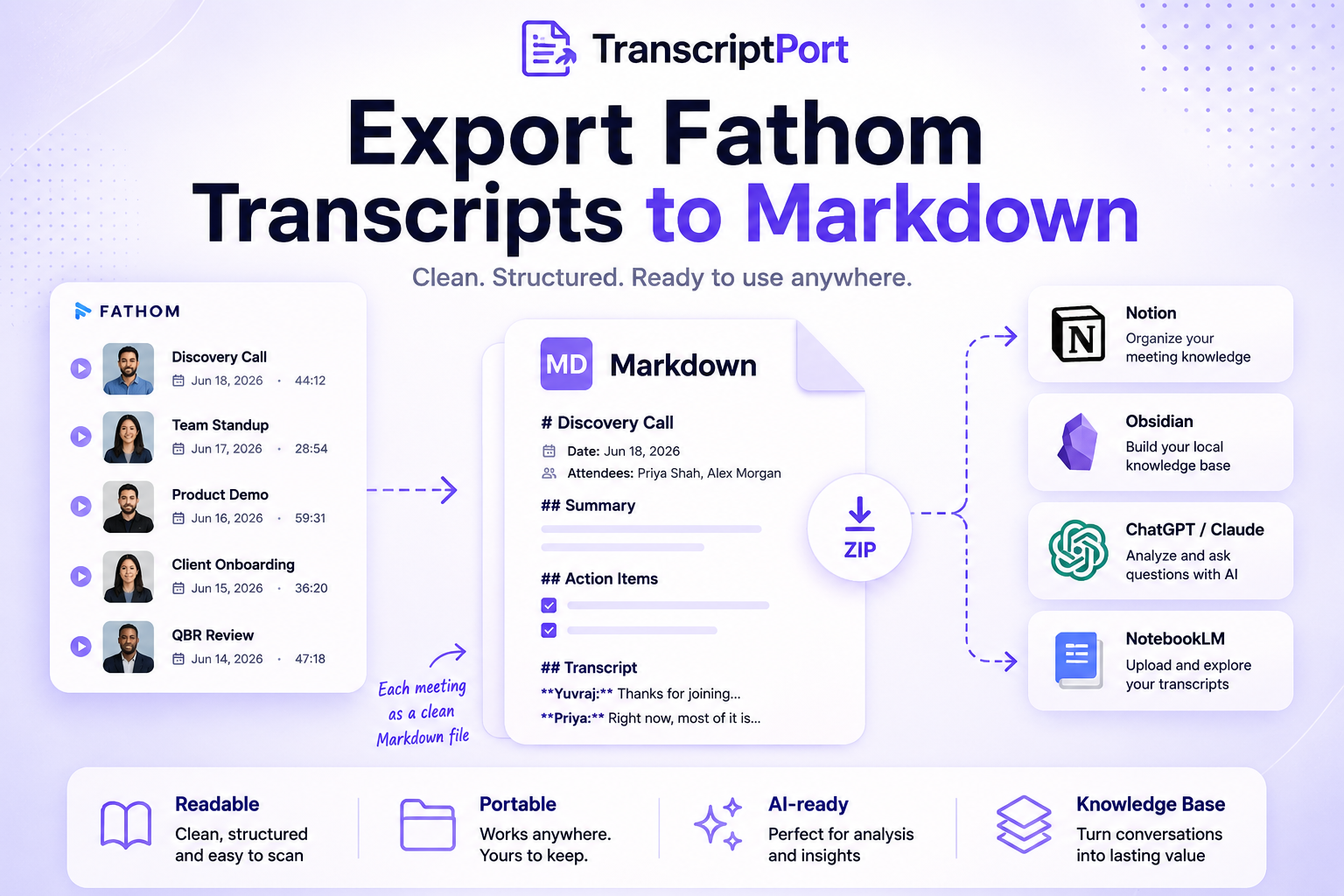
To export Fathom transcripts to Markdown, connect your Fathom account to TranscriptPort, select the meetings you want to export, choose Markdown as the output format, and download the exported files as a ZIP. Each meeting can be saved as a separate Markdown file with its transcript, summary, action items, highlights, attendees, and metadata.
# Why export Fathom transcripts as Markdown?
Markdown is simple plain text with lightweight formatting.
That makes it useful for meeting transcripts because the files remain readable while still preserving structure.
A Markdown export can include:
- Meeting title
- Meeting date
- Attendees
- Summary
- Action items
- Highlights
- Speaker-labelled transcript
- Metadata
Unlike a messy copied transcript, a well-structured Markdown file is easier to scan, search, upload, archive, and reuse.
# Best use cases for Markdown Fathom exports
# 1. Uploading transcripts to ChatGPT or Claude
Markdown works well when you want to analyse meeting transcripts with AI tools.
You can export selected Fathom calls, upload the Markdown files, and ask questions such as:
- What objections came up most often?
- What were the common customer pain points?
- What follow-ups were promised?
- What product feedback appeared across calls?
- What themes repeated across discovery calls?
Markdown keeps the transcript readable for both humans and AI tools.
# 2. Building a Notion knowledge base
If your team uses Notion, Markdown is one of the easiest formats to work with.
You can export your Fathom calls as Markdown and add them to:
- Customer research databases
- Sales call libraries
- Onboarding documentation
- Interview repositories
- Product feedback folders
- Internal playbooks
This is useful when Fathom has the meeting record, but your team's working knowledge lives somewhere else.
# 3. Creating an Obsidian meeting archive
Obsidian users often prefer Markdown because every note is stored as a local .md file.
Exported Fathom transcripts can become part of your personal or team knowledge base.
You can organise them by:
- Customer
- Topic
- Date
- Meeting type
- Sales stage
- Project
- Research theme
This is especially useful for founders, consultants, researchers, and customer-facing teams who want long-term ownership of their meeting notes.
# 4. Turning calls into internal documentation
A single customer call can contain useful information, but dozens of calls can reveal patterns.
Markdown exports make it easier to turn Fathom calls into:
- Sales coaching notes
- Customer success playbooks
- Support issue summaries
- Product feedback reports
- Founder interview notes
- Market research summaries
Instead of keeping insights trapped inside individual recordings, you can move them into documents your team can actually use.
# 5. Keeping a portable meeting backup
Markdown files are easy to store anywhere.
You can keep them in:
- Google Drive
- Dropbox
- GitHub
- Notion
- Obsidian
- Local folders
- Internal documentation tools
The biggest advantage is portability. You are not locked into one meeting tool's interface when you need to search, analyse, or reuse older calls.
# How to export Fathom transcripts to Markdown with TranscriptPort
# Step 1: Connect your Fathom account
Go to TranscriptPort and connect your Fathom account.
TranscriptPort uses Fathom OAuth, so you do not need to paste your password into the app.
Once connected, TranscriptPort can load your available Fathom meetings for export.
# Step 2: Select the meetings you want
After your meeting library loads, choose which calls you want to export.
You can export a few selected meetings or prepare a larger batch.
This is useful when you only want:
- Calls from a specific date range
- Calls with a certain customer
- Sales discovery calls
- Customer onboarding sessions
- Founder interviews
- Product feedback calls
- Internal team meetings
You can review the selected meetings before exporting.
# Step 3: Choose Markdown as the export format
Select Markdown as your output format.
Markdown is a good default when you want readable files that work across note-taking, AI, and documentation tools.
TranscriptPort also supports TXT, CSV, and JSON, but Markdown is usually the best option when you want both readability and structure.
# Step 4: Choose the meeting content to include
Depending on your workflow, you can export more than just the transcript.
TranscriptPort can include:
- Full transcript
- AI summary
- Action items
- Highlights
- Attendees
- Meeting metadata
For most users, the best Markdown export includes the transcript, summary, action items, and meeting metadata.
That gives you both the full conversation and the quick context around it.
# Step 5: Download your ZIP file
Once the export is ready, TranscriptPort packages the Markdown files into a ZIP.
Each meeting can be saved as an organised, named file so your exports are easier to sort and search later.
Instead of copying transcripts one by one, you get your selected Fathom meetings in one download.
# Example Markdown structure
A clean Fathom Markdown export may look like this:
# Discovery Call with Acme

Date: June 18, 2026
Duration: 44 minutes
Attendees: Priya Shah, Alex Morgan
Source: Fathom

## Summary

The customer is evaluating tools to centralise customer call insights. Their current process involves manually reviewing meeting notes across multiple tools.

## Action Items

- Send pricing details by Friday
- Share customer research workflow example
- Follow up with integration documentation

## Highlights

- Customer wants a searchable call library
- Current manual review process is taking too much time
- AI analysis is a major use case

## Transcript

**Yuvraj:** Thanks for joining. I wanted to understand how your team currently reviews customer conversations.

**Priya:** Right now, most of it is inside meeting notes, but it is not easy to search across calls.

**Yuvraj:** Got it. Are you looking to analyse these calls in an AI tool or mainly archive them?

**Priya:** Both. We want a backup, but we also want to spot themes across conversations.
This structure is easy to read and easy to reuse.
# Markdown vs TXT for Fathom transcripts
Markdown and TXT are both plain-text formats, but they are not the same.
TXT is best when you want the simplest possible file with minimal formatting.
Markdown is better when you want structure.
| Format | Best for | Main advantage |
|---|---|---|
| Markdown | Notes, AI tools, documentation, knowledge bases | Readable structure |
| TXT | Simple archiving and plain search | Maximum simplicity |
For most Fathom transcript workflows, Markdown is the better choice because headings, sections, speaker labels, summaries, and action items remain easier to scan.
# Markdown vs CSV for Fathom exports
CSV is useful when you want spreadsheet-style data.
For example, CSV can help when you want to analyse:
- Meeting dates
- Attendees
- Call titles
- Durations
- Meeting counts
- Exported metadata
Markdown is better when the transcript itself is the main content.
| Format | Best for |
|---|---|
| Markdown | Reading, reviewing, AI analysis, documentation |
| CSV | Spreadsheet analysis, reporting, indexes |
| JSON | Developer workflows and structured data |
| TXT | Simple text archives |
If you want to read and use the transcript, choose Markdown.
If you want to analyse meeting records in a spreadsheet, choose CSV.
# Can Fathom export transcripts to Markdown natively?
Fathom lets you copy individual transcripts from recorded calls.
That works when you need one transcript.
But if you want multiple meetings as organised Markdown files, you need a bulk export workflow.
Without a bulk exporter, the manual process looks like this:
- Open a Fathom meeting
- Copy the transcript
- Open a Markdown file
- Paste the transcript
- Add the title and date
- Save the file
- Repeat for every meeting
That process becomes painful when you have dozens or hundreds of meetings.
TranscriptPort removes the repeated copy-paste work.
# Who should export Fathom transcripts to Markdown?
Markdown exports are useful for anyone who wants to reuse meeting data outside Fathom.
# Sales teams
Sales teams can export discovery calls, demo calls, and follow-ups to identify common objections, buying signals, competitor mentions, and messaging gaps.
# Customer success teams
Customer success teams can export onboarding calls, QBRs, escalation calls, and renewal conversations to build a searchable customer history.
# Support teams
Support teams can review recurring issues, customer complaints, bug reports, and product feedback across multiple conversations.
# Founders
Founders can turn customer calls, investor conversations, user interviews, and market research calls into reusable notes and strategic insights.
# Researchers
Researchers can export interviews in a clean format for coding, tagging, synthesis, and AI-assisted analysis.
# Agencies and consultants
Agencies can archive client calls by account, project, date, or campaign, making it easier to revisit decisions and context later.
# Best practices for organising Markdown exports
Before exporting a large meeting library, decide how you want the files to be organised.
A few useful approaches:
# Organise by customer
This works well for sales, customer success, agencies, and consultants.
Example:
/customer-name/2026-06-18-discovery-call.md
/customer-name/2026-06-25-onboarding-call.md
/customer-name/2026-07-10-qbr.md
# Organise by meeting type
This works well for analysis.
Example:
/discovery-calls/
/onboarding-calls/
/support-calls/
/customer-interviews/
# Organise by date
This works well for long-term archives.
Example:
/2026/06/2026-06-18-discovery-call.md
# Organise by project
This works well for agencies, researchers, and internal teams.
Example:
/project-name/interviews/
/project-name/customer-feedback/
/project-name/internal-meetings/
The more meetings you export, the more important naming and structure become.
# How to use exported Fathom Markdown files with AI
Once you have your Fathom transcripts in Markdown, you can upload them to an AI tool and ask more useful questions.
Example prompts:
- Analyse these customer discovery calls and list the top 10 repeated pain points.
- Group the objections mentioned across these sales calls by theme.
- Summarise the common reasons customers were interested in the product.
- Extract all promised follow-ups and group them by meeting.
- Create a voice-of-customer report using direct themes from these calls.
- Turn these founder interviews into a GTM lessons playbook.
Markdown gives the AI tool enough structure to understand the meeting sections while keeping the file easy for you to review manually.
# When not to use Markdown
Markdown is not always the best format.
Use CSV when you mainly care about rows, columns, filters, and spreadsheet analysis.
Use JSON when you are building software, feeding a data pipeline, or preserving structured meeting fields.
Use TXT when you want the simplest possible plain-text archive.
Markdown is best when humans and AI tools both need to read the exported meeting content.
# Final recommendation
If you want to reuse your Fathom meeting history in AI tools, documentation, knowledge bases, Notion, Obsidian, or internal playbooks, Markdown is usually the best export format.
It keeps the transcript readable while preserving enough structure to make the file useful after export.
For one meeting, copying from Fathom may be enough.
For multiple meetings, TranscriptPort makes the workflow much faster.
Connect your Fathom account, choose Markdown, and export your first 5 meetings free.
How to: step-by-step
- Step 1 — Connect your Fathom account
Go to TranscriptPort and connect your Fathom account via OAuth. Once connected, TranscriptPort can load your available meetings for export.
- Step 2 — Select the meetings you want
Choose the calls you want to export. You can select a few meetings or prepare a larger batch, then review your selection before exporting.
- Step 3 — Choose Markdown as the export format
Select Markdown as your output format. It is the best default when you want readable files that work across note-taking, AI, and documentation tools.
- Step 4 — Choose the meeting content to include
Decide which meeting content to include: transcript, summary, action items, highlights, attendees, and metadata.
- Step 5 — Download your ZIP file
TranscriptPort packages the Markdown files into a ZIP. Each meeting becomes an organised, named file so your exports are easy to sort and search.
FAQ
- Can I export Fathom transcripts as Markdown?
- Yes. TranscriptPort lets you export Fathom transcripts as Markdown files. You can also include summaries, action items, highlights, attendees, and meeting metadata.
- Does Fathom have a native Markdown export?
- Fathom lets users copy individual transcripts, but it does not provide a native bulk Markdown export for multiple meetings. TranscriptPort helps you export selected meetings in bulk.
- Is Markdown better than TXT for Fathom transcripts?
- Markdown is usually better when you want structured transcripts with headings, summaries, action items, and speaker labels. TXT is better when you only need plain unformatted text.
- Can I upload exported Markdown transcripts to ChatGPT?
- Yes. Markdown files are useful for ChatGPT, Claude, NotebookLM, and other AI tools because the content stays readable and structured.
- Can I export Fathom summaries to Markdown too?
- Yes. TranscriptPort can export Fathom summaries along with transcripts, action items, highlights, attendees, and meeting metadata.
- Can I export multiple Fathom transcripts to Markdown at once?
- Yes. TranscriptPort is designed for bulk exports. You can select multiple Fathom meetings and download the Markdown files together.
- What is the best format for a Fathom transcript archive?
- Markdown is best for readable archives and AI workflows. CSV is better for spreadsheet analysis, JSON is better for developers, and TXT is best for simple plain-text storage.
- Does TranscriptPort store my Fathom transcripts?
- TranscriptPort retrieves your Fathom data during the export process and prepares your files for download. Your exported files are meant to be stored by you, not used as a permanent hosted transcript archive.