How to Export Fathom Transcripts to CSV
Key takeaways
- CSV is the best format when you want to analyse Fathom meeting data in spreadsheets, CRMs, or reporting tools.
- TranscriptPort exports transcripts, summaries, action items, highlights, attendees, and metadata as structured CSV files.
- Use CSV for sales analysis, customer success reporting, support reviews, CRM enrichment, and customer research at scale.
- Choose Markdown for readable archives, JSON for developer pipelines, and CSV when you need rows and columns.
Fathom is useful for recording calls, generating transcripts, and capturing meeting summaries.
But when you want to analyse your meeting history in a spreadsheet, plain copied transcripts are not enough.
A CSV export is useful when you want your Fathom meeting data in rows and columns so you can sort, filter, analyse, import, or report on it.
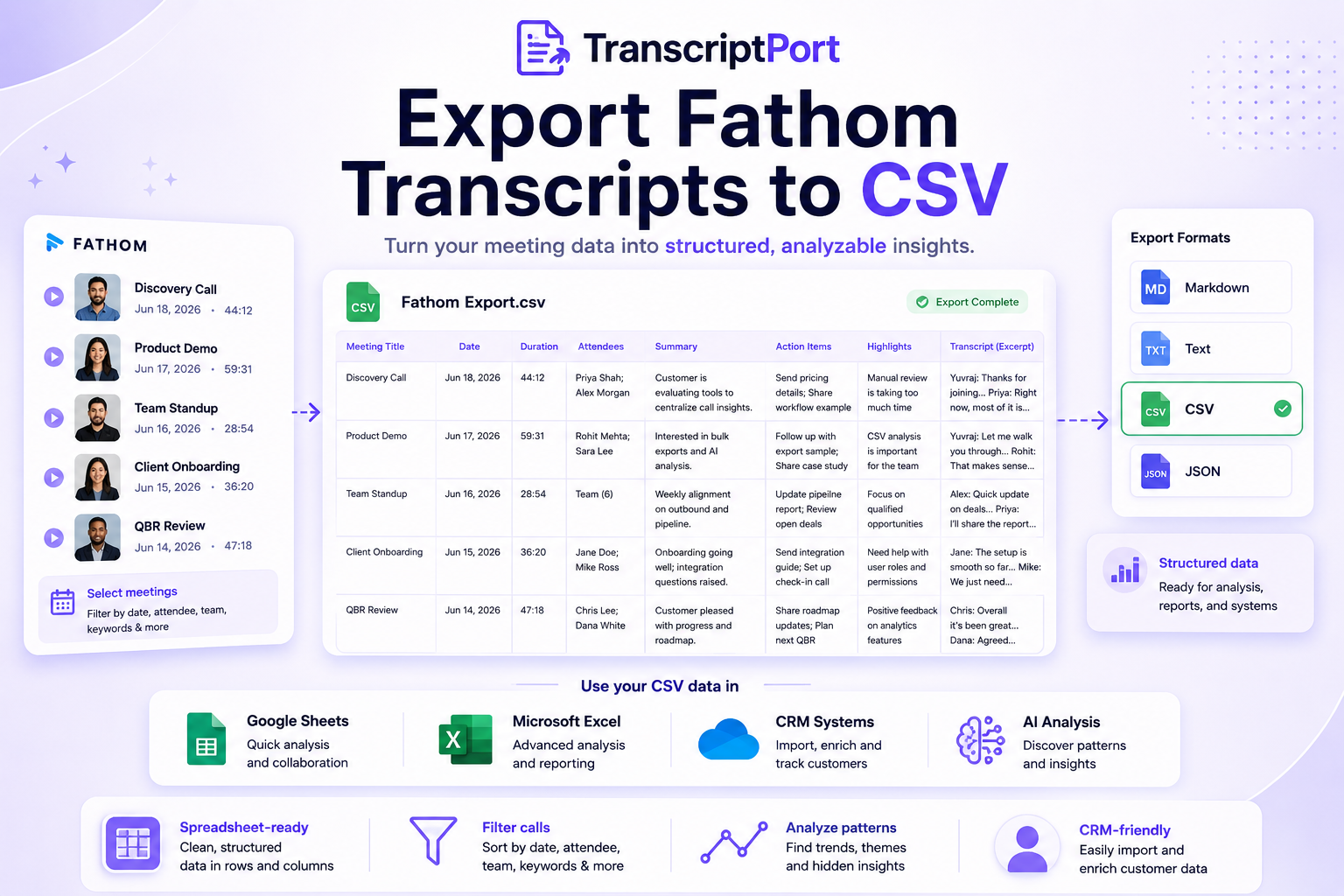
With TranscriptPort, you can export Fathom transcripts and meeting data to CSV in bulk. Connect your Fathom account, select the meetings you want, choose CSV as the export format, and download organised files containing transcripts, summaries, action items, highlights, attendees, and meeting metadata.
# Quick answer
To export Fathom transcripts to CSV, connect your Fathom account to TranscriptPort, select the meetings you want to export, choose CSV as the output format, and download the exported files as a ZIP. CSV is best when you want to analyse meeting data in spreadsheets, CRM workflows, reporting dashboards, or internal data systems.
# Why export Fathom transcripts to CSV?
CSV stands for comma-separated values.
It is one of the most common formats for moving structured data between tools.
Unlike Markdown or TXT, CSV is not mainly designed for reading long-form text. It is designed for structured analysis.
That makes CSV useful when you want to work with Fathom meeting data in tools like:
- Google Sheets
- Microsoft Excel
- Airtable
- Notion databases
- CRM import tools
- BI dashboards
- Internal reporting systems
- Data analysis workflows
If Markdown is best for reading and documentation, CSV is best for filtering, grouping, and analysing.
# What Fathom data can you export to CSV?
TranscriptPort can export multiple types of Fathom meeting data.
Depending on your workflow, your CSV export can include:
- Meeting title
- Meeting date
- Meeting duration
- Attendees
- Speaker names
- Speaker-labelled transcript text
- AI summary
- Action items
- Highlights
- Meeting metadata
This helps you move from isolated meeting notes to a structured dataset.
Instead of opening every Fathom call manually, you can build a spreadsheet of your meeting history.
# When should you use CSV instead of Markdown?
Use CSV when you want to analyse or organise meeting data in rows and columns.
Use Markdown when you want clean, readable files for notes, AI analysis, Notion, Obsidian, or documentation.
Here is a simple way to decide:
| Format | Best for |
|---|---|
| CSV | Spreadsheets, filtering, reporting, CRM workflows |
| Markdown | AI analysis, documentation, Notion, Obsidian |
| TXT | Simple plain-text archives |
| JSON | Developers, APIs, structured data pipelines |
CSV is especially useful when the meeting metadata matters as much as the transcript.
For example, if you want to see all meetings from a quarter, group them by customer, filter by attendee, or analyse how many calls mentioned a topic, CSV is usually the better format.
# How to export Fathom transcripts to CSV with TranscriptPort
# Step 1: Connect your Fathom account
Start by logging in to TranscriptPort and connecting your Fathom account.
TranscriptPort uses Fathom OAuth, so you do not need to paste your Fathom password into the app.
Once connected, TranscriptPort loads the meetings available to your account.
# Step 2: Choose the meetings you want to export
Select the Fathom meetings you want to include in the CSV export.
You can export a small group of calls or a larger meeting library.
This is useful when you want to analyse:
- Sales discovery calls
- Demo calls
- Onboarding calls
- Customer success calls
- Support conversations
- Founder interviews
- Product research calls
- Internal team meetings
Before exporting, review the selected meetings so you only include the data you actually need.
# Step 3: Select CSV as the export format
Choose CSV as your output format.
CSV is the right choice when you want to open the export in Google Sheets, Excel, Airtable, a CRM, or another structured data tool.
TranscriptPort also supports Markdown, TXT, and JSON, but CSV is usually best when your next step involves spreadsheets or reporting.
# Step 4: Choose the content to include
TranscriptPort can export more than the transcript alone.
You can include:
- Full transcript
- AI summary
- Action items
- Highlights
- Attendees
- Meeting metadata
For most CSV workflows, the best export includes transcript text, summary, attendees, meeting title, meeting date, and metadata.
If your goal is reporting, metadata and attendees are especially useful.
If your goal is conversation analysis, transcripts and summaries matter more.
# Step 5: Download the CSV files
Once the export is ready, TranscriptPort packages your CSV files into a ZIP.
You can then open the CSV in your spreadsheet tool or import it into another system.
This removes the manual process of copying each Fathom transcript, pasting it into a document, and trying to organise the data later.
# Example CSV structure
A Fathom CSV export may include columns like this:
meeting_title,meeting_date,duration,attendees,summary,action_items,highlights,transcript
Discovery Call,2026-06-18,44:12,"Priya Shah; Alex Morgan","Customer is evaluating tools to centralise customer conversations.","Send pricing details; Share workflow example","Manual review is taking too much time","Yuvraj: Thanks for joining..."
Product Demo,2026-06-16,59:31,"Rohit Mehta; Sara Lee","Prospect wants to analyse sales calls across the team.","Follow up with export sample","CSV analysis is important for sales operations","Yuvraj: Let me walk you through..."
This structure makes it easier to sort and filter meeting data.
For example, you can filter by:
- Date
- Meeting type
- Customer
- Attendee
- Keyword
- Sales rep
- Action item
- Summary theme
# Best use cases for Fathom CSV exports
# 1. Sales call analysis
Sales teams can use CSV exports to review discovery calls, demos, follow-ups, and objection patterns.
A CSV export can help you answer questions like:
- Which objections appear most often?
- Which competitors are mentioned in calls?
- Which calls had follow-up tasks?
- Which prospects asked about pricing?
- Which meetings need manager review?
Instead of relying only on individual call notes, the team can analyse a larger set of conversations.
# 2. Customer success reporting
Customer success teams can export onboarding calls, QBRs, renewal calls, and escalation conversations.
CSV makes it easier to organise meetings by customer, date, team member, or account.
Useful workflows include:
- Creating a customer meeting archive
- Reviewing onboarding issues
- Tracking customer questions
- Finding repeated product requests
- Preparing renewal context
- Sharing meeting history during account handoff
# 3. Support conversation review
Support teams can use exported meeting data to identify repeated pain points.
If support or implementation calls are recorded in Fathom, CSV exports can help teams review:
- Bug mentions
- Feature requests
- Confusing workflows
- Escalation patterns
- Customer complaints
- Training gaps
This is useful when feedback is spread across many calls and needs to be organised into a usable format.
# 4. CRM enrichment
CSV is one of the most common formats for importing and cleaning CRM data.
A Fathom CSV export can support workflows such as:
- Adding meeting summaries to account records
- Creating a call-history archive
- Matching meetings to customer domains
- Reviewing attendee participation
- Preparing notes for handoff
- Cleaning up past call records
This does not mean every CRM will accept every transcript field directly. But CSV gives you a structured starting point for cleanup, mapping, and import.
# 5. Customer research analysis
If you conduct customer interviews, CSV exports can help you organise research at scale.
You can create columns for:
- Interview date
- Customer segment
- Interviewee
- Company
- Pain points
- Themes
- Quotes
- Follow-ups
- Transcript link or exported text
This works well when you want to identify patterns across many interviews rather than review one call at a time.
# 6. Founder and operator research
If you are interviewing founders, operators, creators, or industry experts, CSV exports can help you build a research dataset.
For example, you could export founder calls and analyse:
- First customer channels
- Pricing mistakes
- GTM experiments
- App store growth strategies
- Hiring lessons
- Retention problems
- Common founder challenges
CSV gives you a structured way to move from raw conversations to repeatable insights.
# How to use exported Fathom CSV files in Google Sheets
After downloading your CSV export, you can upload it to Google Sheets.
Basic workflow:
- Open Google Sheets
- Create a new spreadsheet
- Go to File
- Choose Import
- Upload your CSV file
- Select your import settings
- Review the imported columns
Once imported, you can use filters, search, pivot tables, and formulas to analyse your meeting data.
Useful spreadsheet actions include:
- Filter by meeting date
- Sort by customer or attendee
- Search transcripts for keywords
- Count meetings by type
- Group calls by company
- Create a summary sheet
- Tag conversations manually
# How to use exported Fathom CSV files in Excel
Excel works well for larger exports and structured analysis.
After opening your CSV file in Excel, you can:
- Turn the data into a table
- Filter by column
- Use search across transcript fields
- Create pivot tables
- Group calls by month
- Extract action items
- Prepare reports for the team
For teams already using Microsoft tools, CSV is often the easiest way to move Fathom meeting data into an analysis workflow.
# How to use CSV exports with AI tools
CSV files can also be used with AI tools, especially when you want structured analysis.
You can upload a CSV and ask questions like:
- Analyse this CSV of sales calls and identify the top recurring objections.
- Group these customer success calls by the main issue discussed.
- Find all calls where pricing, onboarding, or integration concerns were mentioned.
- Create a summary of the most common action items across these meetings.
- Identify patterns across these founder interviews and turn them into a GTM playbook.
CSV works especially well when the AI tool needs to compare rows across many meetings.
For long-form transcript reading, Markdown may still be easier. But for structured comparison, CSV is powerful.
# CSV vs JSON for Fathom exports
CSV and JSON are both structured formats, but they are used differently.
CSV is easier for non-technical teams.
JSON is better for developers and systems.
| Format | Best for | Main user |
|---|---|---|
| CSV | Spreadsheets, reports, CRM cleanup | Sales, success, support, ops |
| JSON | APIs, apps, data pipelines | Developers, technical teams |
Choose CSV if you want to open the export in a spreadsheet.
Choose JSON if you want to build or automate something with the data.
# CSV vs Markdown for Fathom exports
Markdown is easier to read.
CSV is easier to analyse.
| Use case | Better format |
|---|---|
| Reading a transcript | Markdown |
| Uploading to Notion or Obsidian | Markdown |
| Building a spreadsheet report | CSV |
| Filtering calls by attendee | CSV |
| CRM data cleanup | CSV |
| AI theme analysis across many rows | CSV or Markdown |
| Documentation | Markdown |
Many teams may eventually use both.
For example:
- Markdown for the full readable archive
- CSV for the meeting index and analysis
# Common mistakes when exporting transcripts to CSV
# Mistake 1: Exporting everything without a plan
Before exporting hundreds of calls, decide what you want to do with the data.
A sales-analysis export may need different fields than a customer-research export.
# Mistake 2: Ignoring file and column structure
CSV is only useful if the columns are clear.
Make sure your export includes the fields you need, such as meeting date, attendees, title, summary, and transcript.
# Mistake 3: Using CSV when Markdown would be better
If your goal is to read transcripts like documents, Markdown may be better.
CSV is best when you want structured analysis.
# Mistake 4: Not checking sensitive data
Meeting transcripts may contain customer information, commercial details, internal decisions, or personal data.
Before sharing CSV exports widely, review what is included and who should have access.
# Mistake 5: Not keeping a clean original export
If you plan to edit, tag, or clean the CSV manually, keep one untouched copy as the original export.
That way, you always have the source file available.
# Who should export Fathom transcripts to CSV?
CSV exports are useful for teams that want to analyse meetings at scale.
# Sales teams
Sales teams can use CSV to review objections, competitor mentions, pricing questions, discovery patterns, and follow-up commitments.
# Customer success teams
Customer success teams can organise onboarding calls, renewal discussions, QBRs, escalations, and customer feedback by account.
# Support teams
Support teams can review repeated complaints, feature requests, and product confusion across recorded calls.
# RevOps teams
RevOps teams can use CSV exports to prepare structured data for CRM cleanup, reporting, or sales-process analysis.
# Founders
Founders can export user calls, sales conversations, interviews, and research meetings to find recurring themes.
# Agencies and consultants
Agencies can keep client meeting records organised by customer, project, topic, or date.
# Researchers
Researchers can use CSV exports to organise interview data, tag themes, and prepare analysis files.
# Final recommendation
Use CSV when you want to turn your Fathom meeting library into structured data.
It is the best format for spreadsheets, reporting, CRM workflows, analysis, and team-level review.
If you only need to read transcripts, Markdown may be better.
If you need developer-friendly structured data, JSON may be better.
But if your goal is to sort, filter, compare, and analyse Fathom meeting data across many calls, CSV is the right format.
TranscriptPort lets you connect your Fathom account, select meetings, choose CSV, and export your first 5 meetings free.
# Frequently asked questions
# Can I export Fathom transcripts to CSV?
Yes. TranscriptPort lets you export Fathom transcripts and meeting data to CSV. You can include transcripts, summaries, action items, highlights, attendees, and metadata.
# Does Fathom have native CSV export?
Fathom lets users copy individual transcripts from meetings, but bulk CSV export requires a separate workflow such as TranscriptPort.
# What can I do with a Fathom CSV export?
You can open the export in Google Sheets, Excel, Airtable, CRM tools, BI systems, or AI tools. CSV is useful for filtering, reporting, analysis, and structured meeting archives.
# Is CSV better than Markdown for Fathom transcripts?
CSV is better for spreadsheets and analysis. Markdown is better for readable files, notes, documentation, Notion, Obsidian, and AI-assisted review.
# Can I export Fathom summaries to CSV?
Yes. TranscriptPort can export Fathom summaries along with transcripts, action items, highlights, attendees, and meeting metadata.
# Can I export multiple Fathom meetings to one CSV?
Yes. TranscriptPort supports bulk exports and can help organise multiple Fathom meetings into structured downloadable files.
# Can I use Fathom CSV exports with ChatGPT or Claude?
Yes. CSV files can be uploaded to AI tools for structured analysis, especially when you want to compare many meetings by row, field, or theme.
# Is CSV useful for CRM import?
CSV can be useful for CRM cleanup and import workflows, but each CRM has its own field-mapping rules. Review and clean the CSV before importing meeting data into a CRM.
# What is the best format for analysing many Fathom calls?
CSV is best for structured analysis in spreadsheets. Markdown is best for readable transcript review. JSON is best for developer workflows.
# Does TranscriptPort store my CSV exports?
TranscriptPort prepares the requested export for download. Your CSV files are intended to be stored and managed by you.
How to: step-by-step
- Step 1 — Connect your Fathom account
Log in to TranscriptPort and connect your Fathom account via OAuth so it can load your available meetings.
- Step 2 — Select the meetings you want to export
Choose the Fathom meetings to include in the CSV export, from a small group of calls to a larger meeting library.
- Step 3 — Select CSV as the export format
Choose CSV when your next step is Google Sheets, Excel, Airtable, a CRM, or another structured data tool.
- Step 4 — Choose the content to include
Pick the fields to include such as transcript, summary, action items, highlights, attendees, and meeting metadata.
- Step 5 — Download the CSV files
TranscriptPort packages your CSV files into a ZIP so you can open them in your spreadsheet tool or import them into another system.
FAQ
- Can I export Fathom transcripts to CSV?
- Yes. TranscriptPort lets you export Fathom transcripts and meeting data to CSV. You can include transcripts, summaries, action items, highlights, attendees, and metadata.
- Does Fathom have native CSV export?
- Fathom lets users copy individual transcripts from meetings, but bulk CSV export requires a separate workflow such as TranscriptPort.
- What can I do with a Fathom CSV export?
- You can open the export in Google Sheets, Excel, Airtable, CRM tools, BI systems, or AI tools. CSV is useful for filtering, reporting, analysis, and structured meeting archives.
- Is CSV better than Markdown for Fathom transcripts?
- CSV is better for spreadsheets and analysis. Markdown is better for readable files, notes, documentation, Notion, Obsidian, and AI-assisted review.
- Can I export Fathom summaries to CSV?
- Yes. TranscriptPort can export Fathom summaries along with transcripts, action items, highlights, attendees, and meeting metadata.
- Can I export multiple Fathom meetings to one CSV?
- Yes. TranscriptPort supports bulk exports and can help organise multiple Fathom meetings into structured downloadable files.
- Can I use Fathom CSV exports with ChatGPT or Claude?
- Yes. CSV files can be uploaded to AI tools for structured analysis, especially when you want to compare many meetings by row, field, or theme.
- Is CSV useful for CRM import?
- CSV can be useful for CRM cleanup and import workflows, but each CRM has its own field-mapping rules. Review and clean the CSV before importing meeting data into a CRM.
- What is the best format for analysing many Fathom calls?
- CSV is best for structured analysis in spreadsheets. Markdown is best for readable transcript review. JSON is best for developer workflows.
- Does TranscriptPort store my CSV exports?
- TranscriptPort prepares the requested export for download. Your CSV files are intended to be stored and managed by you.