How to Export Fathom Transcripts to JSON
Key takeaways
- JSON exports keep Fathom meeting data structured for developers, APIs, CRMs, and AI workflows.
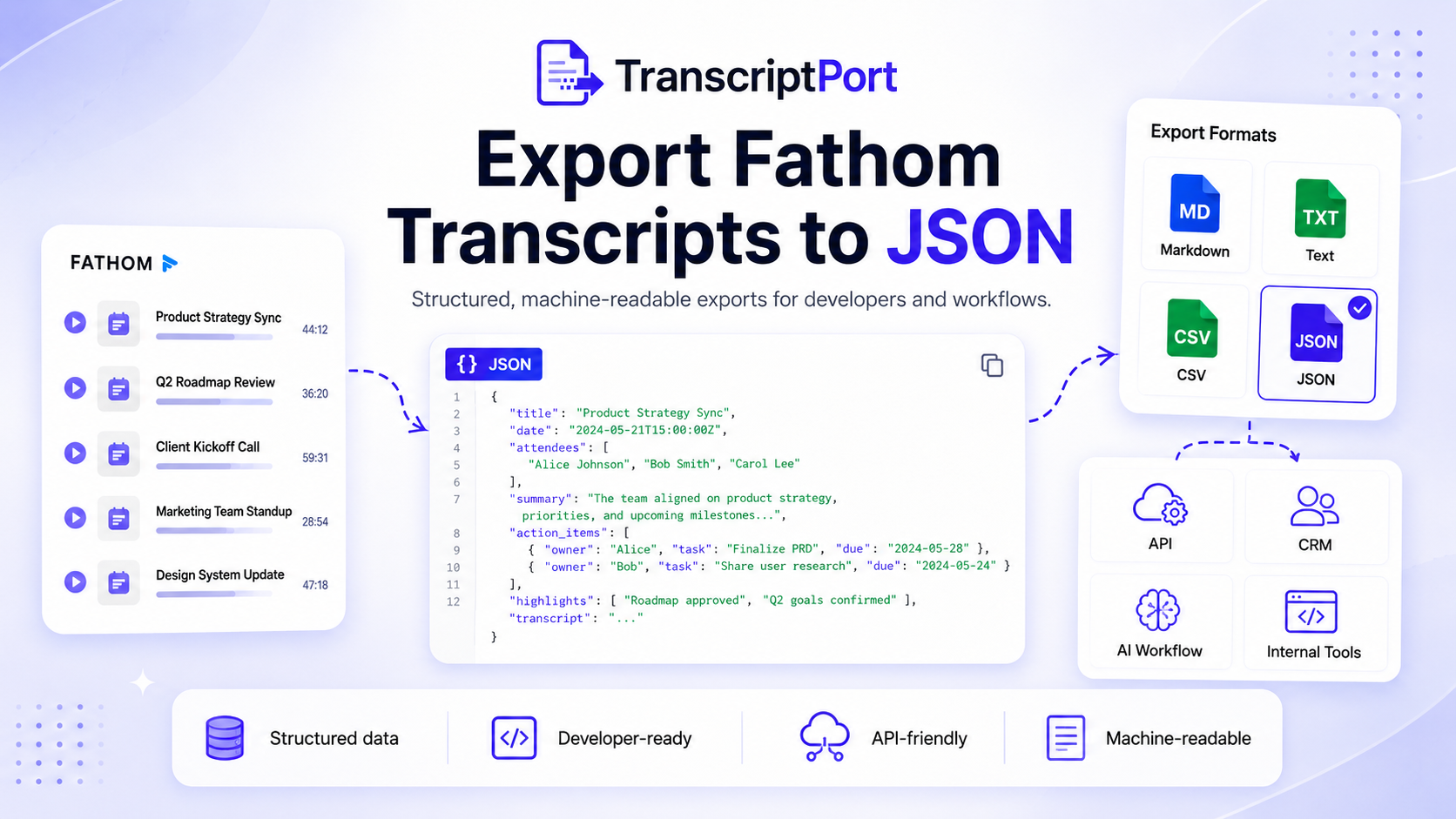
- TranscriptPort supports bulk export of transcripts, summaries, action items, highlights, attendees, and metadata to JSON.
- Use JSON when the structure of the data matters; use Markdown for readability and CSV for spreadsheets.
- JSON is ideal for building internal archives, CRM enrichment, AI analysis, data warehouses, and custom dashboards.
- TranscriptPort handles the export packaging so you can download a ZIP of organised JSON files without building a custom API integration.
# How to Export Fathom Transcripts to JSON
Fathom is useful for recording meetings, generating transcripts, summarising calls, and capturing action items.
But when you want to use that meeting data inside another system, plain copied transcripts are not always enough.
Developers, operators, RevOps teams, and AI workflow builders often need structured data they can parse, transform, upload, or connect to internal tools.
That is where JSON helps.
With TranscriptPort, you can export Fathom transcripts and meeting data to JSON in bulk. Connect your Fathom account, select the meetings you want, choose JSON as the export format, and download organised files containing transcripts, summaries, action items, highlights, attendees, and meeting metadata.
# Quick answer
To export Fathom transcripts to JSON, connect your Fathom account to TranscriptPort, select the meetings you want to export, choose JSON as the output format, and download the exported files as a ZIP. JSON is best when you need structured meeting data for developers, CRMs, internal tools, AI pipelines, analytics workflows, or long-term data portability.
# What is a JSON export?
JSON stands for JavaScript Object Notation.
It is a structured data format used by apps, APIs, databases, automation tools, and software systems.
Unlike Markdown or TXT, JSON is not mainly designed for reading like a document.
It is designed to preserve data in a structured way.
That makes JSON useful when you want to keep separate fields such as:
- Meeting title
- Meeting date
- Meeting duration
- Attendees
- Speaker labels
- Transcript segments
- AI summary
- Action items
- Highlights
- Meeting metadata
Instead of turning your Fathom call into one long text document, JSON keeps the meeting data organised as fields and objects.
# Why export Fathom transcripts to JSON?
JSON is useful when your Fathom meeting data needs to move into another system.
For example, you may want to:
- Build an internal searchable meeting archive
- Push meeting summaries into a CRM
- Analyse transcripts in a data pipeline
- Feed selected conversations into an AI workflow
- Create a customer research database
- Store structured meeting records internally
- Build a custom reporting tool
- Match meeting data with customers, accounts, deals, or projects
If Markdown is best for humans and CSV is best for spreadsheets, JSON is best for software.
# What Fathom data can you export to JSON?
TranscriptPort can export multiple parts of your Fathom meeting data.
A JSON export can include:
- Full transcript
- Speaker-labelled conversation text
- AI summary
- Action items
- Highlights
- Attendees
- Meeting title
- Meeting date
- Duration
- Meeting metadata
This is useful when you need more than just a transcript.
For example, a developer may want to build a tool that separates action items from summaries.
A RevOps team may want to map attendees to CRM accounts.
A founder may want to analyse customer interview themes across multiple calls.
A customer success team may want to connect onboarding-call summaries to customer records.
JSON keeps those fields structured instead of flattening everything into a plain text file.
# When should you use JSON instead of Markdown?
Markdown is usually better when you want to read, review, or upload meeting transcripts into note-taking and AI tools.
JSON is better when you want to build, integrate, automate, or preserve structured meeting data.
| Format | Best for |
|---|---|
| JSON | Developers, APIs, CRMs, internal tools, automations |
| Markdown | AI analysis, Notion, Obsidian, documentation |
| CSV | Spreadsheets, reporting, filtering, RevOps workflows |
| TXT | Simple plain-text archives |
Use JSON when the structure of the data matters.
Use Markdown when readability matters more.
# When should you use JSON instead of CSV?
CSV is useful when you want rows and columns.
JSON is better when the data is nested or more complex.
For example, one Fathom meeting may include:
- Multiple attendees
- Multiple action items
- Multiple highlights
- Multiple speaker turns
- A summary
- Transcript sections
- Metadata
CSV can represent some of this, but nested data often becomes messy in spreadsheets.
JSON can keep the data cleaner because it can preserve arrays and objects.
| Use case | Better format |
|---|---|
| Open in Google Sheets | CSV |
| Import into Excel | CSV |
| Build an internal app | JSON |
| Preserve transcript segments | JSON |
| Store multiple action items cleanly | JSON |
| Send data to an API | JSON |
| Create a reporting spreadsheet | CSV |
If your next step is a spreadsheet, choose CSV.
If your next step is code, automation, or an API, choose JSON.
# How to export Fathom transcripts to JSON with TranscriptPort
# Step 1: Connect your Fathom account
Log in to TranscriptPort and connect your Fathom account.
TranscriptPort uses Fathom OAuth, so you do not need to share your Fathom password with the app.
Once connected, TranscriptPort loads the meetings available to your account.
# Step 2: Select the meetings you want to export
Choose which Fathom meetings you want to include in the export.
You can export a few selected calls or a larger meeting library.
This is useful when you want to export:
- Sales discovery calls
- Customer success calls
- Product research interviews
- Support conversations
- Founder interviews
- Demo calls
- Internal team meetings
- Customer onboarding sessions
Before exporting, review your selected meetings so you only include the data you actually need.
# Step 3: Choose JSON as the export format
Select JSON as the output format.
JSON is the right choice when you want structured meeting data for technical or automated workflows.
TranscriptPort also supports Markdown, TXT, and CSV, but JSON is usually the best option when the export needs to be read by software.
# Step 4: Choose the content to include
TranscriptPort can export more than the transcript alone.
You can include:
- Full transcript
- AI summary
- Action items
- Highlights
- Attendees
- Meeting metadata
For most JSON workflows, the best export includes all available fields.
That gives you maximum flexibility later.
For example, you can use the transcript for analysis, the summary for quick display, the action items for task workflows, and the attendees for CRM matching.
# Step 5: Download your JSON files
Once the export is ready, TranscriptPort packages the JSON files into a ZIP.
Each meeting can be saved as an organised file so you can store, upload, parse, or process the data later.
This removes the need to manually copy transcripts from Fathom and rebuild structure yourself.
# Example JSON structure
A Fathom JSON export may look like this:
{
  "meeting": {
    "title": "Discovery Call with Acme",
    "date": "2026-06-18",
    "duration": "44:12",
    "source": "Fathom"
  },
  "attendees": [
    {
      "name": "Priya Shah",
      "email": "priya@example.com"
    },
    {
      "name": "Alex Morgan",
      "email": "alex@example.com"
    }
  ],
  "summary": "The customer is evaluating tools to centralise customer conversations and analyse repeated themes across calls.",
  "action_items": [
    "Send pricing details by Friday",
    "Share customer research workflow example",
    "Follow up with integration documentation"
  ],
  "highlights": [
    "Customer wants a searchable call library",
    "Manual review is taking too much time",
    "AI analysis is a major use case"
  ],
  "transcript": [
    {
      "speaker": "Yuvraj",
      "text": "Thanks for joining. I wanted to understand how your team currently reviews customer conversations."
    },
    {
      "speaker": "Priya",
      "text": "Right now, most of it is inside meeting notes, but it is not easy to search across calls."
    }
  ]
}
This kind of structure makes it easier to parse and reuse the meeting data.
# Best use cases for Fathom JSON exports
# 1. Building an internal meeting archive
If your company wants a searchable internal archive of Fathom calls, JSON is a strong format.
You can store each meeting as a structured object and index fields such as:
- Meeting title
- Attendees
- Date
- Summary
- Action items
- Transcript text
- Customer domain
- Meeting type
This is useful for companies that want ownership of their meeting data outside the Fathom interface.
# 2. Connecting Fathom data to a CRM
CRM workflows often need structured data.
A JSON export can help technical teams map meeting information to:
- Accounts
- Contacts
- Deals
- Opportunities
- Customer records
- Follow-up tasks
- Notes
- Activity timelines
For example, a developer could use attendee emails or company domains to match exported Fathom calls with existing CRM records.
# 3. Creating AI workflows from meeting data
JSON works well when you want to send structured meeting data to an AI workflow.
You can separate:
- Summary
- Action items
- Transcript
- Speaker names
- Attendees
- Metadata
This helps create more controlled prompts and pipelines.
For example, you could build workflows that:
- Extract objections from sales calls
- Tag customer pain points
- Summarise onboarding issues
- Group product feedback by theme
- Identify follow-up commitments
- Generate weekly meeting intelligence reports
# 4. Analysing customer research at scale
If you run customer interviews, JSON can help preserve research structure.
You may want to store:
- Interviewee details
- Company context
- Date
- Transcript
- Summary
- Themes
- Quotes
- Action items
- Research tags
JSON gives you a cleaner starting point than copying transcripts into unstructured documents.
# 5. Creating custom dashboards
If you want to build dashboards around meeting activity, JSON can be transformed into whatever format your system needs.
Possible dashboard metrics include:
- Number of calls per week
- Calls by customer or account
- Calls by team member
- Most common action items
- Repeated customer issues
- Frequent competitor mentions
- Call topics over time
JSON is not the final dashboard. It is the structured source data that makes dashboards easier to build.
# 6. Backing up meeting data in an open format
A JSON export gives you a portable copy of your meeting data.
That matters when you want to:
- Keep an independent archive
- Move data between tools
- Prepare for account changes
- Store records internally
- Support compliance workflows
- Maintain long-term access to important conversations
JSON is especially useful when the meeting data may be reused in software later.
# JSON and the Fathom API
Fathom provides API access for meeting data.
For technical teams, the API can be useful if you want to build and maintain your own custom workflow.
But not every team wants to handle:
- Authentication
- API pagination
- Field mapping
- Error handling
- Export formatting
- File generation
- Retry logic
- Bulk download packaging
TranscriptPort gives users a faster way to export structured Fathom meeting data without building an internal tool first.
For developers, JSON export can also be a practical bridge.
You can export the meeting data quickly, inspect the structure, validate your use case, and then decide whether a custom API integration is worth building later.
# Common JSON export workflows
# Workflow 1: Fathom to internal knowledge base
- Export selected Fathom calls to JSON
- Store the files in a secure internal folder
- Parse the transcript and summary fields
- Index the content in your internal search system
- Let team members search across customer calls
# Workflow 2: Fathom to CRM enrichment
- Export customer calls to JSON
- Match attendees to CRM contacts
- Add summaries to account records
- Create follow-up tasks from action items
- Keep transcripts linked or archived separately
# Workflow 3: Fathom to AI analysis
- Export a group of calls to JSON
- Send summaries and transcripts into an AI workflow
- Extract recurring themes
- Group themes by customer segment
- Create a report or playbook from the analysis
# Workflow 4: Fathom to data warehouse
- Export meeting data to JSON
- Transform the data into your preferred schema
- Load it into your database or warehouse
- Connect dashboards or analysis workflows
- Refresh periodically with new exports
# Questions you can answer with JSON exports
Once your Fathom meeting data is structured, you can answer better questions.
# For sales teams
- Which objections appear most often?
- Which competitors are mentioned in calls?
- Which calls mention pricing?
- Which prospects requested integrations?
- Which deals have unresolved action items?
# For customer success teams
- Which customers raised onboarding issues?
- Which accounts mentioned expansion opportunities?
- Which QBRs included renewal risks?
- What themes appear across escalation calls?
# For support teams
- Which product issues appear repeatedly?
- Which calls mention bugs?
- What feature requests keep coming up?
- Which customers need follow-up?
# For founders and operators
- What did users consistently ask for?
- Which positioning points resonated?
- What problems were repeated across interviews?
- Which GTM lessons appeared across founder conversations?
# Best practices for JSON exports
# Keep raw exports unchanged
If you plan to transform the JSON later, keep the original export untouched.
That gives you a reliable source file if anything goes wrong during cleanup or processing.
# Export only the meetings you need
Large exports can include sensitive or irrelevant conversations.
Before exporting, review your selected meetings and avoid including unnecessary internal or private calls.
# Store files securely
Fathom transcripts may include customer information, commercial details, internal decisions, or personal data.
Treat JSON exports as sensitive business records.
# Use clear file names
Organised file names make future processing easier.
A useful naming structure may include:
- Date
- Meeting title
- Customer name
- Meeting type
Example:
2026-06-18-acme-discovery-call.json
# Validate the structure before importing
Before pushing JSON into a CRM, database, or internal tool, review the fields and confirm they match your expected schema.
# Who should export Fathom transcripts to JSON?
# Developers
Developers can use JSON to build internal apps, automation workflows, search systems, dashboards, and AI pipelines.
# RevOps teams
RevOps teams can use JSON exports to support CRM enrichment, sales-process analysis, and structured meeting-data workflows.
# Customer success teams
Customer success teams can use JSON to preserve onboarding, QBR, renewal, and escalation conversations in a structured format.
# Support teams
Support teams can export support calls and analyse repeated issues, customer pain points, and product feedback.
# Founders
Founders can export customer calls, user interviews, sales calls, and founder conversations to analyse patterns across a larger dataset.
# Researchers
Researchers can preserve interview transcripts, metadata, participants, summaries, and highlights in a structured format for later analysis.
# When not to use JSON
JSON is powerful, but it is not always the best format.
Do not choose JSON if your main goal is simply to read transcripts.
Use Markdown when you want readable files.
Use CSV when you want spreadsheet analysis.
Use TXT when you want the simplest possible text archive.
JSON is best when you need structure, automation, or technical flexibility.
# Final recommendation
Use JSON when you want your Fathom meeting data in a structured, machine-readable format.
It is the best option for developers, APIs, CRMs, internal tools, AI workflows, data pipelines, and long-term structured archives.
For readable notes, use Markdown.
For spreadsheets, use CSV.
For simple text backups, use TXT.
With TranscriptPort, you can connect your Fathom account, select the meetings you want, choose JSON, and export your first 5 meetings free.
Connect Fathom and export 5 meetings free
# Frequently asked questions
# Can I export Fathom transcripts to JSON?
Yes. TranscriptPort lets you export Fathom transcripts and meeting data to JSON. You can include transcripts, summaries, action items, highlights, attendees, and meeting metadata.
# Does Fathom have a native JSON export?
Fathom offers API access for meeting data, but users who want a ready-made bulk JSON export workflow can use TranscriptPort.
# What is JSON useful for?
JSON is useful for developers, APIs, CRMs, internal tools, automations, AI workflows, dashboards, and structured data archives.
# Is JSON better than CSV for Fathom exports?
JSON is better for structured or nested data. CSV is better for spreadsheets, filtering, reporting, and non-technical analysis.
# Is JSON better than Markdown for Fathom transcripts?
JSON is better for software and automations. Markdown is better for reading, documentation, Notion, Obsidian, ChatGPT, Claude, and NotebookLM.
# Can I export Fathom summaries and action items to JSON?
Yes. TranscriptPort can export summaries, action items, highlights, attendees, metadata, and transcripts to JSON.
# Can I use Fathom JSON exports with a CRM?
Yes, JSON can be used for CRM workflows, but your team may need to map fields according to your CRM's import or API requirements.
# Can I use JSON exports with AI tools?
Yes. JSON is useful for structured AI workflows because it separates fields such as transcript, summary, attendees, action items, and metadata.
# Can I export multiple Fathom meetings to JSON at once?
Yes. TranscriptPort is designed for bulk exports, so you can export multiple Fathom meetings together.
# Does TranscriptPort store my JSON exports?
TranscriptPort prepares your export for download. Your exported JSON files are intended to be stored and managed by you.
How to: step-by-step
- Step 1 — Connect your Fathom account
Log in to TranscriptPort and connect your Fathom account using OAuth. Once connected, TranscriptPort loads the meetings available to your account.
- Step 2 — Select the meetings you want to export
Choose which Fathom meetings you want to include in the export. You can export a few selected calls or a larger meeting library.
- Step 3 — Choose JSON as the export format
Select JSON as the output format. JSON is the right choice when you want structured meeting data for technical or automated workflows.
- Step 4 — Choose the content to include
Select which content to include: full transcript, AI summary, action items, highlights, attendees, and meeting metadata.
- Step 5 — Download your JSON files
Once the export is ready, TranscriptPort packages the JSON files into a ZIP. Download and store, upload, parse, or process the data later.
FAQ
- Can I export Fathom transcripts to JSON?
- Yes. TranscriptPort lets you export Fathom transcripts and meeting data to JSON. You can include transcripts, summaries, action items, highlights, attendees, and meeting metadata.
- Does Fathom have a native JSON export?
- Fathom offers API access for meeting data, but users who want a ready-made bulk JSON export workflow can use TranscriptPort.
- What is JSON useful for?
- JSON is useful for developers, APIs, CRMs, internal tools, automations, AI workflows, dashboards, and structured data archives.
- Is JSON better than CSV for Fathom exports?
- JSON is better for structured or nested data. CSV is better for spreadsheets, filtering, reporting, and non-technical analysis.
- Is JSON better than Markdown for Fathom transcripts?
- JSON is better for software and automations. Markdown is better for reading, documentation, Notion, Obsidian, ChatGPT, Claude, and NotebookLM.
- Can I export Fathom summaries and action items to JSON?
- Yes. TranscriptPort can export summaries, action items, highlights, attendees, metadata, and transcripts to JSON.
- Can I use Fathom JSON exports with a CRM?
- Yes, JSON can be used for CRM workflows, but your team may need to map fields according to your CRM's import or API requirements.
- Can I use JSON exports with AI tools?
- Yes. JSON is useful for structured AI workflows because it separates fields such as transcript, summary, attendees, action items, and metadata.
- Can I export multiple Fathom meetings to JSON at once?
- Yes. TranscriptPort is designed for bulk exports, so you can export multiple Fathom meetings together.
- Does TranscriptPort store my JSON exports?
- TranscriptPort prepares your export for download. Your exported JSON files are intended to be stored and managed by you.